Productivity
How to Set Up and Collaborate with a Kanban Board in Microsoft Teams

Sofia Bennett · · 8 min read
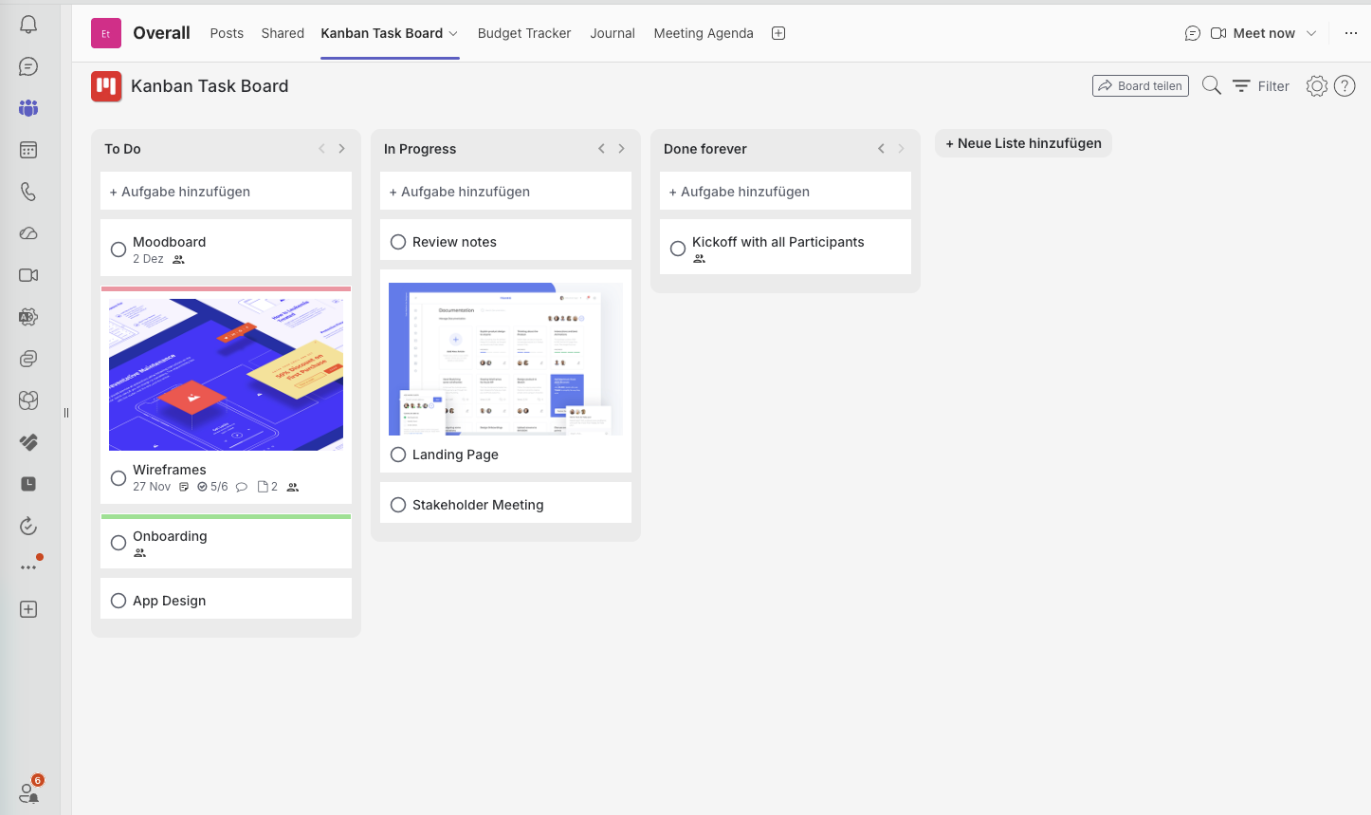
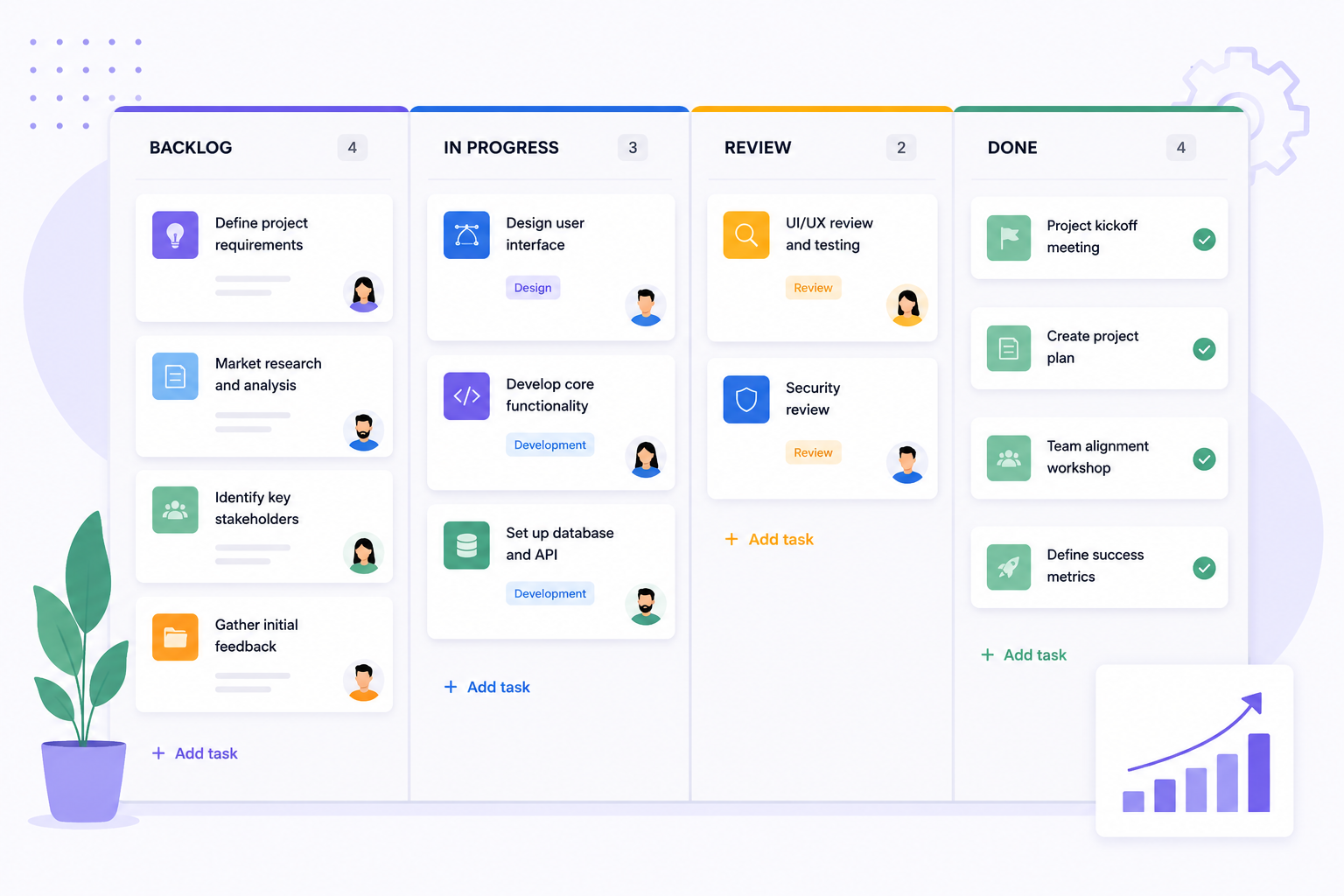
A Kanban board in Microsoft Teams gives everyone one shared, visual view of tasks, priorities and progress. Instead of work scattered across chats, meetings and personal to-do lists, it sits exactly where the conversation already happens.
With Kanban Task Board you can create unlimited boards in Teams channels, group chats and private workspaces, or open them on the web with a secure email-link login. More details on kanban-taskboard.com
How to add a Kanban board to a Teams channel or chat
- 1Open the Microsoft Teams channel or group chat where the work is discussed.
- 2Click the plus (+) button in the top navigation bar to add a tab.
- 3Select Kanban Task Board from the list of apps.
- 4Choose Create new Kanban Board.
- 5Name the board after the project or workflow and save the tab.
The board is now part of that channel or chat. Everyone with access to the Teams space can work on the same board, move cards, change priorities and see who owns what.
Why collaboration works better on a shared board
A shared board makes work visible, and visibility is what most collaboration problems actually need. Missed work is rarely a question of effort. It is unclear ownership, hidden dependencies and decisions buried in a chat thread.
Key collaboration benefits
- Shared visibility across projects, tasks and priorities
- Clear ownership, because every card has an assignee
- Fewer status meetings, because progress is already on screen
- Faster coordination between departments and project members
- Better alignment for remote and hybrid teams
- A simple rhythm for planning, doing, reviewing and finishing work
Using a Kanban board personally in Microsoft Teams
Kanban is not only a team format. Add a board to a channel only you can access and you have a private productivity space for your own tasks, planning, reminders and recurring routines — a visual command centre for daily work.
Using Kanban Task Board on the web
Not every collaborator lives in Microsoft Teams. Kanban Task Board also runs in the browser: users log in securely through an email link and open the same boards. That makes it practical for external partners, freelancers and clients who need access without joining your tenant.
Set up as many boards as your workflows need
Different work deserves different boards. Teams create separate boards for projects, departments, clients, internal processes, campaigns, onboarding and personal planning — and keep each one simple instead of forcing everything into a single mega-board.
Written by
Sofia Bennett
Sofia Bennett works with startups and remote teams to build transparent workflows with Kanban. Her articles focus on WIP limits, prioritisation and practical ways to keep everyone aligned day to day.